

Create and price a plan
Build a plan in the admin panel, price it per country and interval, and follow what a subscriber can do with it.
A plan is what a user subscribes to. This guide covers creating one from the admin panel, its prices, how it is withdrawn from sale, and every move a subscriber can make: subscribe, upgrade, downgrade, cancel, come back. It assumes billing is on; if the admin sidebar has no Plans group, start with Turn on plans and billing.
How a plan is stored
One plan is one row in billing_plans and one Stripe Product, named APP_NAME - Plan name. Its prices are rows in billing_prices, one per country and currency, and each of those has one row in billing_price_variations per billing interval, holding the amount and the Stripe Price id. A subscription points at a Stripe Price, so the current plan of a user is resolved from the price on the subscription item, never from a plan id stored on the subscription.
A user has one subscription, named default, with exactly one plan price on it and zero or more add-on prices. Every helper assumes that shape.
Create the plan
Go to Plans, Plans, Create. The form has six blocks, followed by two read-only cards.
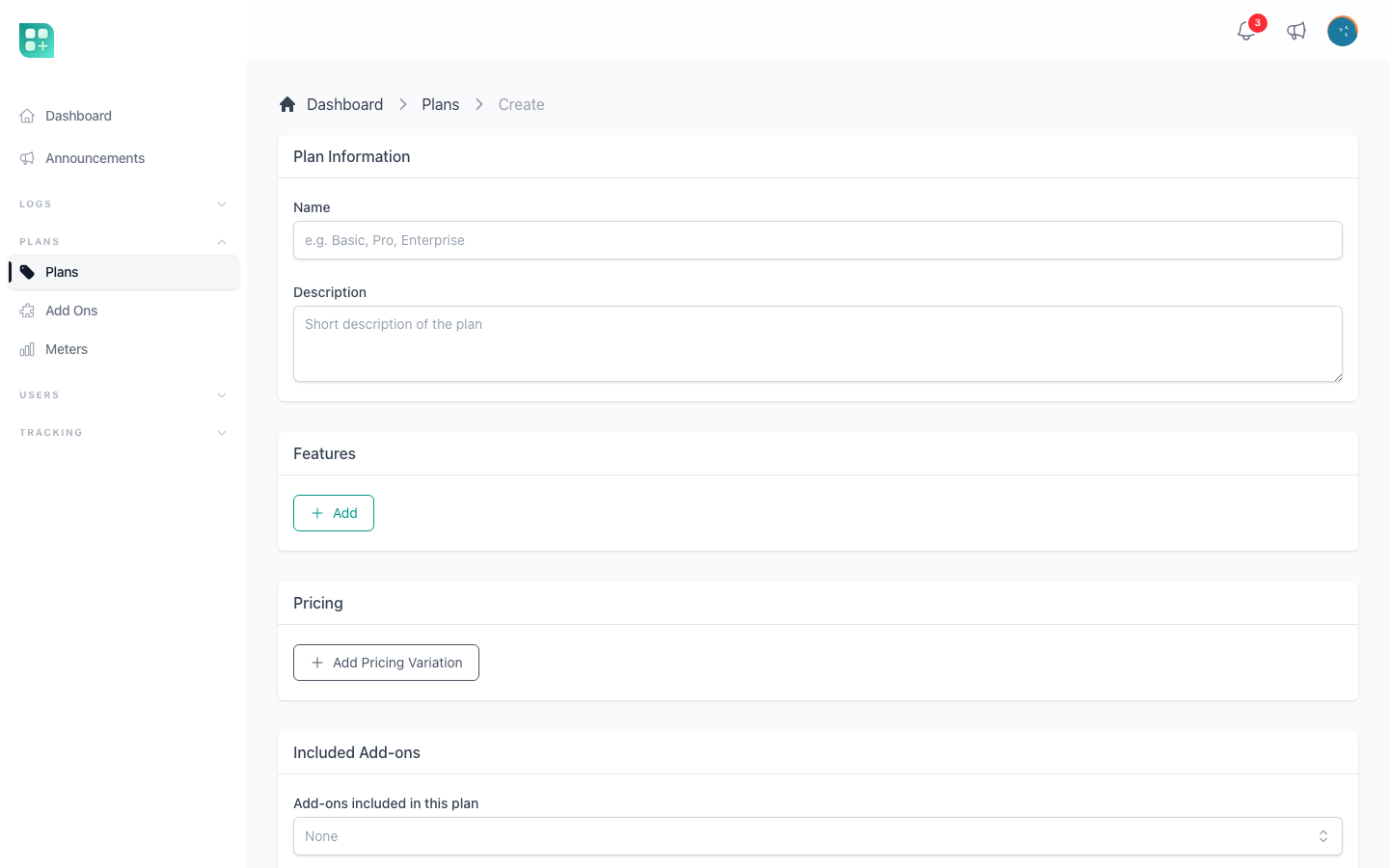
| Block | Fields | Notes |
|---|---|---|
| Plan Information | Name, Description | Both required. They are what the plan card shows. A Context select appears only when a second billing adapter is registered, to restrict the plan to users or to the other owner. While tickets or the live chat are on, the block also has the Priority support and Support chat switches. |
| Features | One line each, added with Add | Each line becomes a check mark on the card. Purely descriptive; nothing reads them. |
| Pricing | One pricing variation per country | Detailed below. Required: at least one variation with at least one amount. |
| Included Add-ons | Add-ons included in this plan | Capabilities the plan grants at no extra line on the subscription. See Sell add-ons. |
| Included meters | Meter and Included each cycle, one row per meter, added with Add meter | The prepaid and postpaid meters. Being on this list is what lets the plan's subscribers use the meter at all; the amount is what the plan brings each cycle. When it runs out, a prepaid meter blocks until more is bought and a postpaid meter charges the overage; 0 means every unit is charged from the first one. See Sell usage with meters and packages. |
| Capacity and limits | Capability and Allowed, one row per quota, added with Add capacity | The quotas are the public methods of App\Classes\PlanLimits and the capacity meters. Nothing here blocks on its own: the kit shows the customer their usage against what they have, and your code decides where it enforces the check. See Plan limits and usage. |
A meter or quota can appear once across the two lists. Below them, Postpaid meters and Capacity meters are read-only: for every active meter of that kind they say whether the plan, as last saved, declares it and how much it includes or allows, and they warn when a capacity meter is one the project does not measure, so its usage always reads zero.
Saving creates the Stripe Product and one Stripe Price per amount, and redirects to the plan list. If STRIPE_SECRET is missing the form says so in a warning at the top; set it before creating plans, since every price is a Stripe object.
The plan also gets a slug from its name. It is internal metadata written into the Stripe Product and is not shown anywhere, except as the key of a plan declared in code.
Pricing
Click Add Pricing Variation. Each variation is one Country and one Currency, with one amount field per interval. A plan sold at 199 MXN a month in Mexico and 12 USD a month everywhere else is two variations: MX - Mexico in MXN, and All in USD. Each country can appear once per plan.
- Country is
All(stored asdefault) or one of the listed countries. The user sees the variation for their country when there is one, andAllotherwise. The country comes from the user'scountry_code, then from country detection, then fromdefault. Resolution stops there: a user whose country has no variation and for whom there is noAllvariation is shown nothing, never another country's amount in another country's currency. Casing does not matter —MXandmxare the same country. - Currency is one of the listed ISO codes. It is the currency Stripe charges in; no conversion happens at sale time.
- Each amount creates a recurring Stripe Price for that interval. Stripe Prices are immutable, so once saved the field is disabled. To change an amount, remove the price with the cross above the field and type the new one: the old Stripe Price is archived and a new one created. The cross is only offered while no subscription uses that price.
- The trash button removes the whole variation; it is only offered when none of its prices has subscribers.
- An amount of
0is a free plan. Keep one: when several apply, a new account is put on the one priced for its own country before anAllone, and on the oldest of those, so the rest are never handed out at registration. The plan list warns you when more than one free plan exists.
The interval columns come from config/pricing.php, monthly and yearly by default; adding an entry there adds a column here, and the currency list, the country list and the exchange rates are all explained in Currencies, intervals and exchange rates.
Once a variation is saved, the eye button next to it opens a modal with its subscriber count, its prices and a chart, and an Open full page link to /admin/billing-plans/{id}/pricing/{country}.
Declare a plan in code
Instead of capturing a plan by hand in every environment, you can describe it once in database/seeders/PlanSeeder.php. The deploy already runs the seeders (php artisan db:seed --force), so the plan is created on the first deploy and kept up to date on every one after that. Weblabor Base ships the seeder empty.
Each entry is keyed by the plan's slug:
$plans = [
    'pro' => [
        'name' => 'Pro',
        'description' => 'Short text shown on the pricing page.',
        'prices' => [
            ['country' => 'default', 'currency' => 'usd', 'units' => null, 'intervals' => ['monthly' => 19, 'yearly' => 190]],
            ['country' => 'mx', 'currency' => 'mxn', 'units' => null, 'intervals' => ['monthly' => 349]],
        ],
        'defaults' => ['features' => ['Everything in Basic']],
    ],
];
name, description and prices are kept in step with the code; each price row is one pricing variation, with one amount per interval. defaults holds anything else the form captures, such as the feature lines, and is applied only when the plan is created — after that it is yours to change in the panel. A key you leave out of the entry is left as it is. Add-ons can be declared the same way; see Sell add-ons.
What the panel lets you change
A plan created by the seeder opens with a Managed by code notice. Its name, description and prices are read-only there, and each deploy puts them back to what the code says. The features, the included add-ons, the included meters and the capacity rows stay editable.
Prices follow the code without churning Stripe: an amount that did not change keeps its Stripe price, and a changed amount replaces it exactly as removing it and typing the new one would. An amount that has subscribers is retired instead of removed: its Stripe price is archived, so new sales, the plan cards and plan changes use the new amount, while whoever already pays the old one keeps paying it and still sees the plan as their current one. A retired price is never offered as a destination; use Migrate subscribers, below, to move them onto the new one.
Release it from code
When you want to manage a plan by hand from then on, press Release from code in the notice and confirm. Every field becomes editable and the seeder never touches that plan again, even though its entry is still in the code. This cannot be undone from the panel.
Bring an existing plan under code
A plan that already exists with the entry's slug — created in the panel, or before the seeder existed — is taken over only when everything the entry declares matches what is stored: the name, the description, and the same price rows (country, currency, units and amount) with no other price stored. Then it opens with the Managed by code notice from the next deploy on, its prices and its subscribers untouched, and defaults is not applied. Write the entry from what the panel shows to adopt a plan you already sell.
When the plan differs from the entry and you want the code to control it anyway, mark it with a migration in your project; from the next deploy the seeder treats it as its own and puts everything the entry declares in place:
DB::table('billing_plans')
    ->where('slug', 'pro')
    ->whereNull('released_from_code_at')
    ->update(['managed_by_code' => true]);
A plan released from code is skipped on purpose. Take care with the prices: one that has subscribers is never deleted, so an amount that differs from the entry cannot be replaced from code any more than from the panel. Move those subscribers first, or write the entry with the amounts the plan already has. The same recipe for a meter, with its migration in full, is in Bring a meter under code when it differs from the entry.
What the seeder never touches
A plan that differs in anything the entry declares is never taken over: the seeder leaves it alone and the deploy prints which fields differ. A plan released from code is not taken back even when it still matches, and a plan the seeder created and somebody then deleted is not brought back either.
What a country with no price sees
Pricing two countries and forgetting the All variation is the easiest mistake to make here, and it used to be invisible: the visitor got an empty screen and nobody was told. Now every screen says what is happening, and nothing is ever quoted or charged at another country's rate.
| Where | What the user sees |
|---|---|
| The plans page, and the pricing block on the landing | "No plans for your country yet", with a line explaining that prices have not been published for their country and inviting them to write to you. |
| An add-on's detail page | "Not on sale in your country" in place of the price, and every way of getting it — subscription, tiers, per unit, buy for life — says "This add-on is not on sale in your country yet" and offers a disabled button. |
| The add-ons catalogue in the account | The add-on is left out of the list. The search box and the category filters stay on screen, so a search that matched nothing can be cleared. |
| A meter card | "There are no units packages on sale in your country yet" instead of the buy buttons. |
| Usage billed at the end of a cycle | "Not charged: no price for your country". The usage is still measured, and the closed period is listed as Not billed; nothing is sent to Stripe. |
A plan priced only for other countries also shows as Not available in the admin panel instead of Free, which is what it used to say.
Warnings in the admin panel
Three warnings tell you that a catalogue leaves somebody out. None of them stops you from saving: selling in two countries only is a decision you are allowed to make.
- On every pricing form — plans, add-ons and meters — when the variations cover named countries and none of them is
All: "No price for the rest of the world". - On the plan list, when no plan in the whole catalogue has an
Allvariation: anyone from another country sees no plan at all and cannot subscribe. - On the plan list, when more than one free plan exists, explaining which one a new account gets.
The first one answers for the form in front of you; the second asks the question no single plan can answer, because a plan sold in Mexico alone is perfectly legitimate as long as some other plan covers everybody else.
Where the plan appears
A plan is on sale the moment it is saved with a Stripe price. It shows on /account/plans for signed-in users and in the pricing section of the landing page, under the interval switch. The switch lists only the intervals that at least one plan has priced and that are marked active in config/pricing.php; a user who already subscribes sees their own interval selected.
Withdraw a plan from sale
There is no on-sale toggle on plans; the catalogue is what has a Stripe price. Three operations exist, and each one refuses when it would break a subscriber:
- Remove a price: the cross on the amount, only while nobody subscribes to it. The Stripe Price is archived, so it can no longer be bought, and the plan stops showing for that interval or country.
- Delete the plan: from the plan list, only when it has no prices left. The Stripe Product is archived and the row is soft-deleted.
- Migrate the subscribers: on the pricing page, Migrate subscribers opens a modal where you tick the subscriptions to move, or none to move them all, then pick a destination plan and one of its prices. The move runs in a queued job,
MigrateSubscriptionsToPlan, so the queue must be running; each subscription is swapped to the destination price, keeping the add-ons that exist in the same currency and interval, with Stripe's default proration. Nothing is emailed to the subscribers.
So the sequence to retire a plan that people use is: create the replacement, migrate the subscribers to it, remove the old prices, delete the old plan. Subscriptions and invoices keep referencing the archived Stripe Prices, which is why deletion is guarded.
Agree a price with one account
A price lower than the list price can be agreed with one account, for a plan, an add-on sold by subscription or a package of a meter. On the user's page in the admin panel, the Agreed prices panel lists the ones the account has, or says it has none, and Add an agreed price asks for:
- Price: the list price it replaces — the product, its interval and its amount.
- Agreed price: in the same currency, and lower than the list price; otherwise it is refused.
- Duration: forever, until it is removed; a number of charges (each purchase of a package is one), after which the account goes back to the list price; or until a date, after which a charge is at the list price.
A package is charged at the agreed price in a single payment, without a subscription. A plan or an add-on is charged at the list price with a Stripe discount for the difference, made for that account and that line only, so the other lines of the subscription are untouched. A line that starts while the agreed price is in force — subscribing to the plan, changing to it or to its interval, or adding the add-on — carries the discount from its first invoice; when that first payment goes through Stripe Checkout, the promotion code field is not offered. A move down to a cheaper plan that waits for the renewal does the same: when the account has an agreed price for that plan and interval, the renewal is already charged at it, and otherwise at that plan's list price. An account already subscribed pays the agreed price from its next renewal, with nothing charged or refunded for the period in course. If the list price changes, the discount is recalculated so the account keeps paying what was agreed. An agreed price belongs to the product and interval it was added for: an account that moves to another plan, or to an interval with no agreed price, pays the list price of what it moved to. No product or price is created in Stripe for any of this.
The account sees its agreed price, and how long it lasts, in place of the list price on its plans, add-ons and packages. The panel shows, for each one, the list price, the agreed price, the duration, how many charges were applied, and who added it and when; Remove ends one, and the account pays the list price from its next charge. One that ends by its charges or its date shows when it ended. Only the administrators who can grant add-ons see the panel.
Add or remove credit on an account
Credit is an amount the account has in its favour: Stripe takes it off the account's next invoices on its own, up to each invoice's total, and keeps what is left for the one after. On the user's page in the admin panel, the Credit balance panel shows the credit available, what the next invoice comes to without and with it, and every movement with its date, amount, reason and who made it.
- Click Add credit to give the account credit, or Remove credit to take back credit it has not used yet. Remove credit only appears while the account has some.
- Write the Amount. It is in the account's billing currency, which the field names; when removing, it cannot be more than the credit left unused.
- Write the Reason. It is required, and the account reads it beside the movement, so write it for them.
- Save. The panel shows the new movement and the credit available after it.
If Stripe does not accept the change, nothing changes and the message says why.
The credit pays subscription invoices only. A package bought through Stripe Checkout is a single payment, not an invoice, so it is charged in full whatever the credit. Each time an invoice uses part of the credit, the panel records it as Applied to an invoice, by System.
The account sees a Credit balance card on its billing screen as soon as it has credit or any movement: the amount available, what its next payment goes from and to, what it keeps for the one after when the credit is larger than the invoice, its movements with their reason, signed By Administration rather than with your name, and a notice that the credit does not apply to buying packages.
Only the administrators who can grant add-ons see the panel. In a product where teams are billed rather than users, the panel goes on the team's page, where the product adds it to its team sheet.
Read an account's subscription history
On the user's page in the admin panel, the Subscription history panel lists every change to the account's subscription, newest first, each as one sentence with its date: the plan it started on and at what price, each change of plan, price, tier, add-on or quantity with the price before and after, cancellations, resumptions and the end, agreed prices starting and ending, a move of the renewal day, failed and recovered payments, the payments received with what they covered, and the credit added, removed or applied.
Each line ends with who made the change: By and your colleague's name for what an administrator did, By The account for what the account did itself, and By System for what Stripe or a scheduled task did. When the change was charged, the line says how much and up to when, for example Charge of $120.00, prorated until 15 March 2027; a payment that paid for no change of its own, such as a renewal, is a line of its own. Nothing has to be written by hand: every change made from the account, from the admin panel or from Stripe is recorded once.
The account sees the same history on its billing screen, signed By you, By Administration or By System — never with your name. An account that already had a subscription when the history was turned on reads The detailed history starts on and that date: before it, the history only holds what was already kept — the start, the plan changes, the cancellation and the end, the payments and the credit movements — and those earlier lines appear once the queue has processed them.
Only the administrators who can grant add-ons see the panel. In a product where teams are billed rather than users, it goes on the team's page, where the product adds it to its team sheet.
Follow the subscribers
The pricing page of each variation lists its subscribers with name, email, status and start date, and charts New Subscriptions per Day, Cumulative Subscriptions and Estimated Revenue per Day, the last one being new subscriptions times the average amount of that variation. The users list has a Current Plan column and a Plan filter. The admin dashboard has the global revenue and subscription metrics described in Turn on plans and billing.
What the subscriber can do
Every action lives on the plan cards at /account/plans; the button on each card depends on the user's subscription. The logic is PlanService in the package, reached from your own code as $user->subscribeToPlan($variation), $user->changeSubscriptionPlan($variation) and $user->subscription()->cancel().
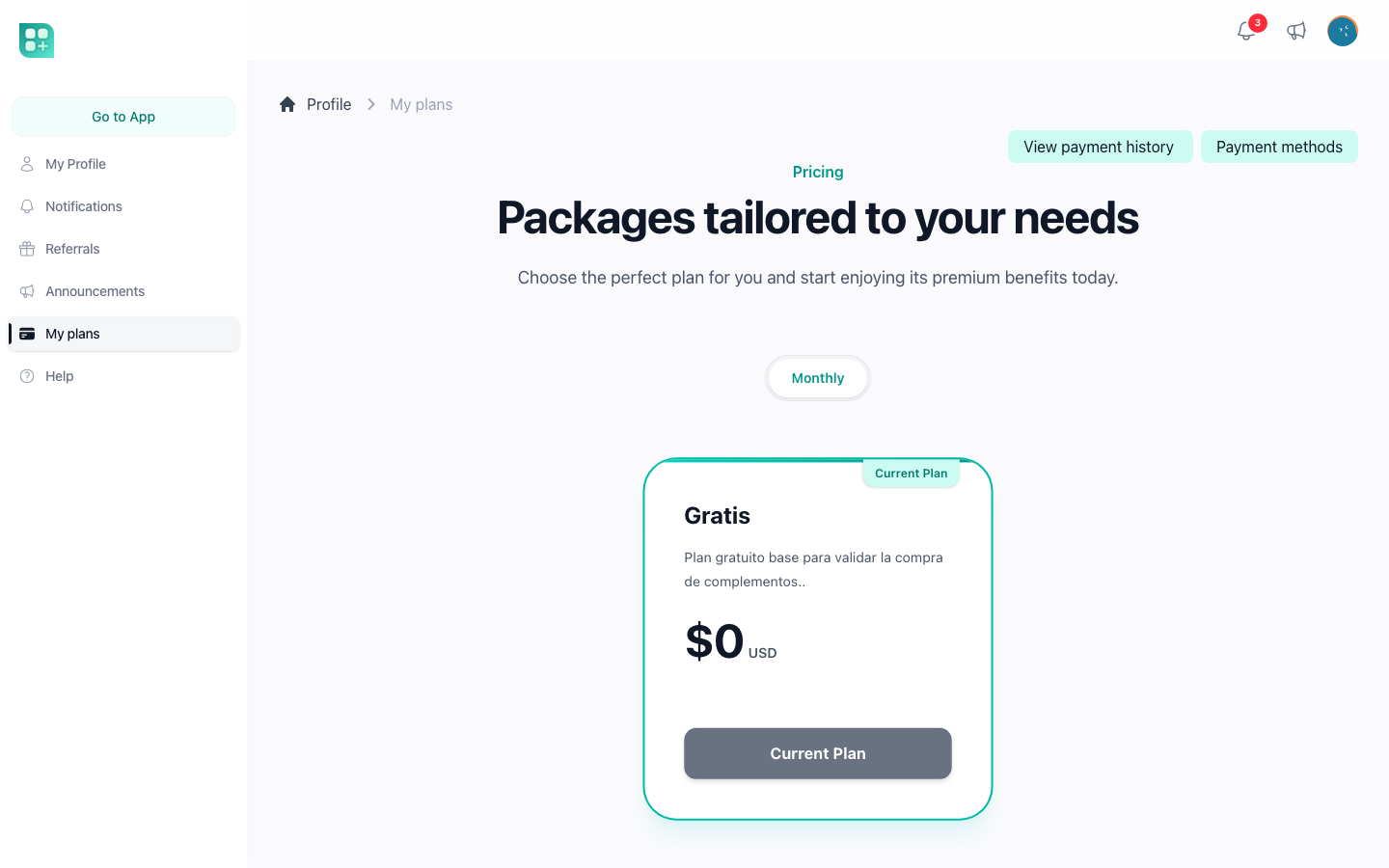
Subscribe
Without a subscription every card says Subscribe. A free plan is subscribed on the spot, with no card. A paid plan opens Stripe Checkout; on success Stripe returns the user to /account/plans?checkout=success, which shows "Payment successful" and sends them to the dashboard while the webhook creates the local subscription. Checkout shows a promotion code field when coupons are on; see Free trials and coupons.
A new user is subscribed to a free plan at registration: the one priced for their own country when there is one, the All one otherwise, and the oldest of them when several apply. A free plan whose Stripe price was never created is skipped. Opening /account/plans repeats that check for a user who has no subscription at all, and changes nothing for a user who has one: the plan someone subscribed to stays theirs even when their country later stops matching the catalogue it was priced in. The country still decides which prices they are shown. When a subscription ends, the account goes back to its free plan on its own, and is told why on every screen when it cannot; see When your account is left without a plan.
Because the price depends on it, a user without a country in their profile has one detected on their next page, and is sent to /account and kept there only when that detection answers with nothing — every other page then sends them back, and only signing out is left. The admin panel is never affected, and neither is a project that does not sell subscriptions. See Detect the visitor's country.
Change plan
Every plan that can be chosen says Change plan. A cheaper plan already scheduled for renewal shows Starts on {date} instead. While a cancellation can still be undone, the current plan shows Resume plan. Before anything is sent to Stripe the destination plan's limits are checked against the user's current usage; exceeding one stops the change with the message "You have exceeded the limit for ...". Then:
| From | To | What happens |
|---|---|---|
| Free | Free | The price is swapped. |
| Free | Paid, no saved card | Checkout opens with the new plan plus the current add-ons, and the free subscription keeps running while the user is away paying. Closing the tab, backing out, or a bank that never confirms leaves them on the plan they already had. |
| Paid | Paid, higher, same interval | swapAndInvoice: the prorated difference is charged now. A declined card cancels the change: the user stays on the plan they had, no unpaid invoice is left, and the message says what the bank answered. The same holds from a free plan with a saved card. When the bank asks the user to approve the payment, Confirm your payment opens inside the app and the new plan applies only once it is approved; see Sell add-ons. |
| Paid | Paid, lower, same interval | The current plan stays active through the period already paid. The cheaper plan starts at the next renewal, with no credit for the unused time. |
| Paid | Free | Cancelled at period end; the user keeps the paid plan until then and is not charged again. |
| Any | Different interval | The Stripe subscription is updated directly with proration_behavior: always_invoice, every add-on mapped to its price at the new interval. It fails if an add-on has no price at that interval, or if no valid payment method is on file. A payment the bank asks to approve waits for it in the same window. |
Add-ons on the subscription are kept through every change. Downgrades are measured by amount: a destination cheaper than the current plan price is a downgrade.
An account never carries two subscriptions. Whichever way a new one arrives — the Checkout Stripe confirms, the free plan handed to a user who has none, an add-on that opens the first subscription — the one that was running is ended at the moment the new one is confirmed, and not before.
Cancel and the grace period
The current paid plan's card says Cancel. Cancelling sets the subscription to end at the period end, so the user keeps access until the date they paid for. During that grace period the plan card offers Resume plan, with the date the subscription stays active through, and the billing screen shows Cancellation scheduled:
- Clicking Resume plan removes the pending cancellation, so the same plan renews normally. Picking another paid plan also reactivates the subscription.
- Picking a free plan is refused: the subscription is already ending.
- Once the date passes, the subscription is ended and the user is put on the free plan of their country on its own. When there is none, or their usage is over its limits, every card says Subscribe again. Either way the billing screen shows when it was cancelled and by whom.
The cancellation date, its reason and the user who clicked are stored on the subscription (canceled_at, cancellation_reason, canceled_by). A cancellation made in the Stripe Dashboard arrives through the webhook and shows as "via Stripe".
Failed payments
When Stripe could not collect a renewal, the subscription is past_due, and it keeps counting as active: the plan, its add-ons and its dates stay untouched for a grace period of BILLING_PAST_DUE_GRACE_DAYS days, 15 by default, counted from the failed charge. The billing screen shows Payment failed with that deadline and a Retry payment button, the plan card reads Retry payment, and the user is notified, and warned again BILLING_PAST_DUE_WARNING_DAYS days (3) before the end. If nothing is paid by then, billing:enforce-past-due, scheduled daily at 03:00, cancels the subscription and records the amount as a balance the account has to settle before it can go on. A failed charge for usage closed at the end of a cycle opens the same grace period. When the first payment never completed, the subscription is incomplete and does not count as active: /app redirects to the plans, and the card reads Retry payment. Retrying pays the open invoice with the default card, or sends the user to Stripe's hosted invoice page when the bank asks for authentication. One retry attends to everything owed, the closed usage periods included, and reports the payment as still pending when any part of it did not go through.
The billing screen
/account/billing shows the subscription state as a badge, the plan name, the number of active add-ons, the start of the current period and the next payment date read live from Stripe, the Current price per month of everything the subscription carries, a collapsible list of the add-ons with their prices, and under Latest Payments the last ten paid invoices with date, amount, status and what each one covered; the amounts are formatted with CASHIER_CURRENCY_LOCALE. The Subscription history card lists the last ten changes to the subscription, and View full history opens all of them, as described in Read an account's subscription history. View on a payment opens Payment detail, with each line of the invoice and its total, and Download receipt when Stripe has the invoice's PDF. The same screen shows Payment failed with Retry payment after a charge failed, Resume plan while a cancellation is scheduled, and the credit waiting on the next invoice. The receipt, and the Stripe page Retry payment opens, come in the app's language rather than the browser's.
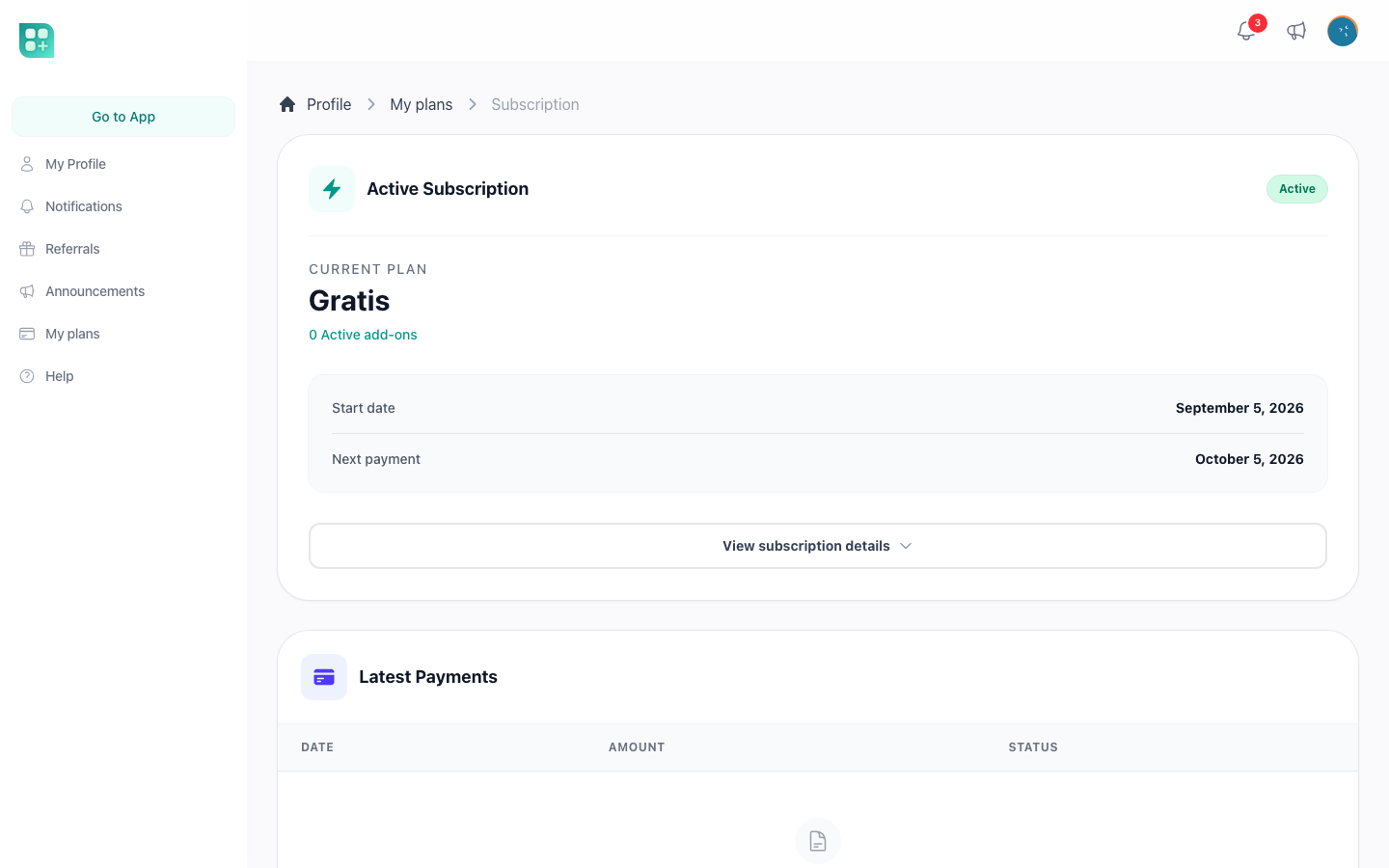
/account/payment-methods lists the saved cards with brand, last four digits and expiry. A card is added through Stripe Elements against a SetupIntent, so no card number reaches your server; the first card becomes the default automatically. A card can be made default when there is more than one, and removed unless it is the last one or the default card of an active subscription.
Events for your code
Two events let the rest of the application react without touching billing:
WeblaborMx\BillingCore\Events\SubscriptionPaidon every paid invoice, with the amount, currency, invoice id and subscription id. The kit listens to it to pay referral rewards and record a tracking event.WeblaborMx\BillingCore\Events\PlanChangedwhen a user changes to a paid plan.
Both carry the billing context; check $event->adapterKey() === 'user' before acting on a user, so a listener stays correct if another billing owner is added later.