
The space pages
How much room an account takes up and how much the whole system takes up, where to read each figure, and how an account cleans up its activity history.
The kit ships two pages that answer "how much room is this taking up?": one for each account, at /app/space, and one for the administrator, at /admin/space, that reports on the whole system. Both split the answer the same way — File space, Data space and their Total — but they measure different things, so their figures are not meant to add up.
The account's page
Every signed-in account reaches it from the Space entry of the application sidebar, under Dashboard and Media. It is always in the menu, whatever the plan.
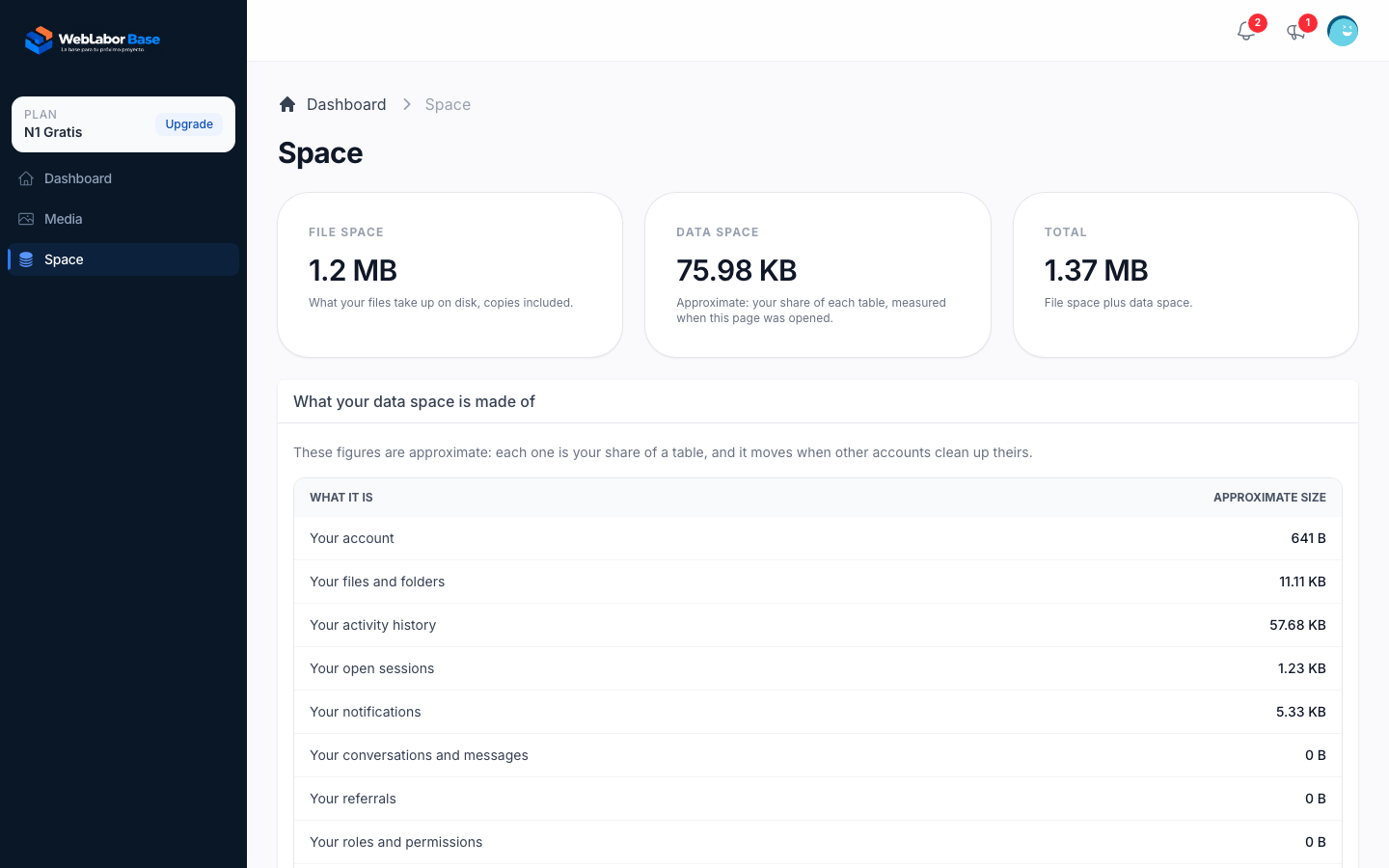
The three cards at the top read:
- File space. What the account's files take up on disk, copies included: every file in the account's own folders, with the thumbnails and conversions generated from it. When the account has a
disk_spacelimit — from its plan and any add-on it bought — the card reads the files out of that quota ("40 MB of 100 MB") and draws a bar under it. From 80% the bar says how much of the space is used, and once the files reach the quota it says the account has run out of space and can delete files or buy more. A quota of zero reads as a full bar with that message. With no quota the card shows the files alone and no bar. - Data space. An approximate figure for the account's rows in the database: for each table, the account's share of its size, in proportion to how many of its rows are the account's. It is measured when the page is opened, and it moves when other accounts clean up theirs.
- Total. File space plus data space.
Below them, What your data space is made of breaks the data space down into the account itself, its files and folders, its activity history, its open sessions, its notifications, its conversations and messages, its referrals, its roles and permissions, and everything else it keeps.
The quota, the unit it is written in and how extra space is sold are explained in /help/plan-limits-and-usage. Where the files themselves are stored is in /help/files-images-and-storage.
Clean up your activity history
The activity history is the record of what changed in the account, in its folders and in its files, and it is usually the part of the data space that grows. The last card of the page removes part of it:
- Open Space in the application sidebar.
- In Clean up your activity history, choose what to remove under Entries to remove: Older than a month (the default), Older than three months, Older than six months, Older than a year or Everything.
- Press Clean up.
The page answers with History cleaned up and the number of entries removed, or with Nothing to clean up when there were no entries older than the age you chose. The figures on the page are measured again straight away.
Removing entries recovers the space this page reports. It does not free disk on the server: the database keeps the room the table already had.
The cleanup is refused, with History was not cleaned up and the reason, while the account is held back from the application: when it has to set a new password or is blocked and, with plans and billing turned on, when it has to complete its country, owes money or has no active subscription.
The system report
The administrator reaches it from the Space entry of the admin sidebar, right under Dashboard. Every account with the admin role sees the entry and opens the page.
Its three cards measure the whole installation rather than one account:
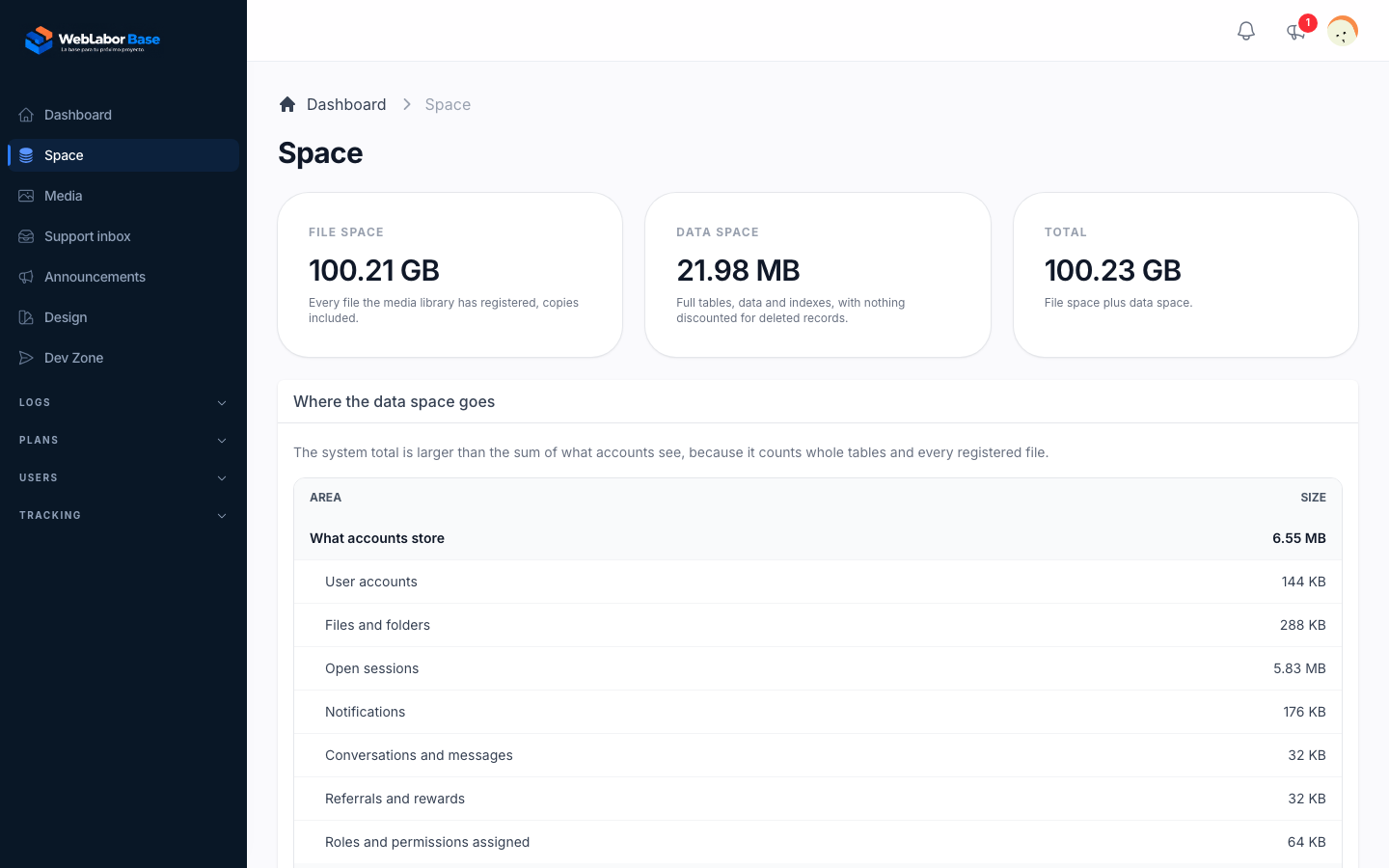
- File space. Every file the media library has registered, copies included, whoever owns it.
- Data space. Full tables, data and indexes, with nothing discounted for deleted records.
- Total. File space plus data space.
Where the data space goes groups every table of the database in three blocks, each with its total and one line per area:
- What accounts store: user accounts, files and folders, open sessions, notifications, conversations and messages, referrals and rewards, and the roles and permissions assigned.
- What running the system costs: the activity history, billing, webhooks, communications, visitor tracking, and catalogs and settings.
- Owned by no account: queues and cache, framework internals, and Other tables for any table the report does not name, such as the tables your project adds.
The system total is larger than the sum of what the accounts see on their own page, because it counts whole tables and every registered file, not the share of each account.
The rest of the admin panel is described in /help/the-admin-panel.