Get in however you prefer
Registration, sign-in, verification codes, password recovery and open sessions come already built, and you decide which identities your product accepts.
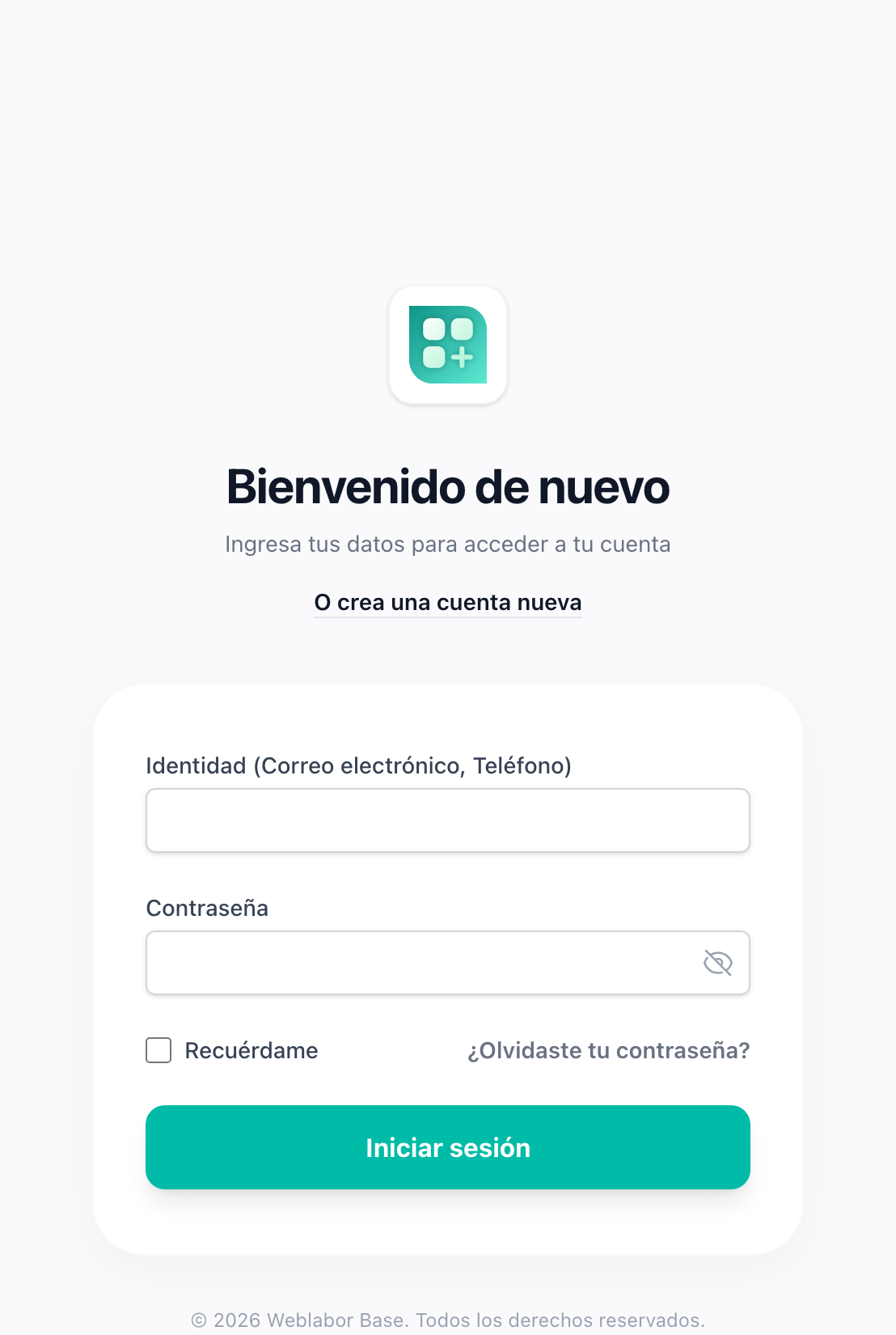
Sign in with whatever you remember
One field takes an email, a phone or a username, and you choose which of the three your product accepts. Nobody has to remember which one they signed up with.
How to choose the identitiesOne screen or two, as your product needs
The classic form asks for identity and password together. The two-step mode asks for the identity first, so an account an administrator created or an import brought in verifies its email and sets its password on the first visit.
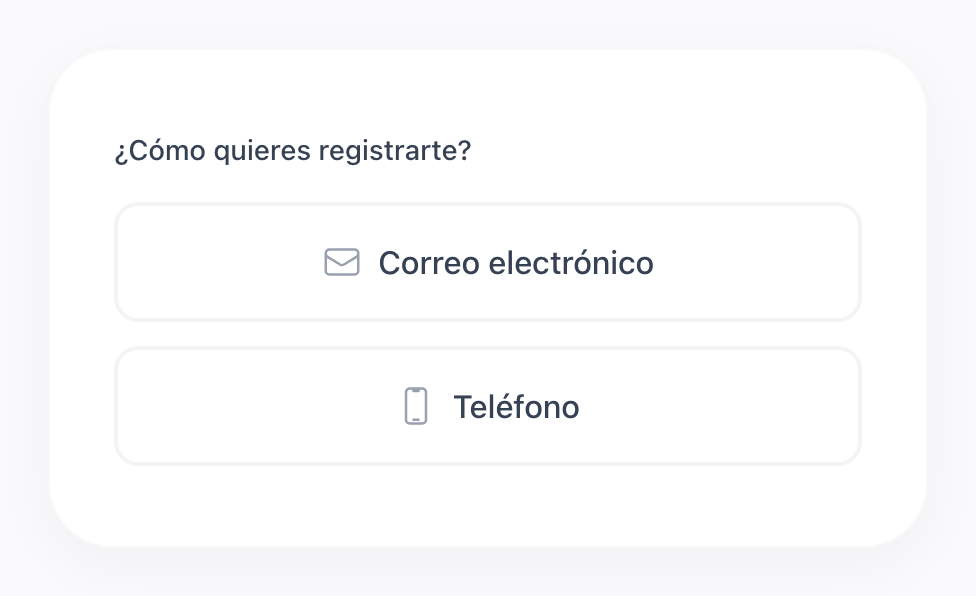
Registration you do not have to write
Name, identity, password and the terms checkbox are already there. When you allow more than one identity, the form asks how the person wants to sign in and shows the fields that match.
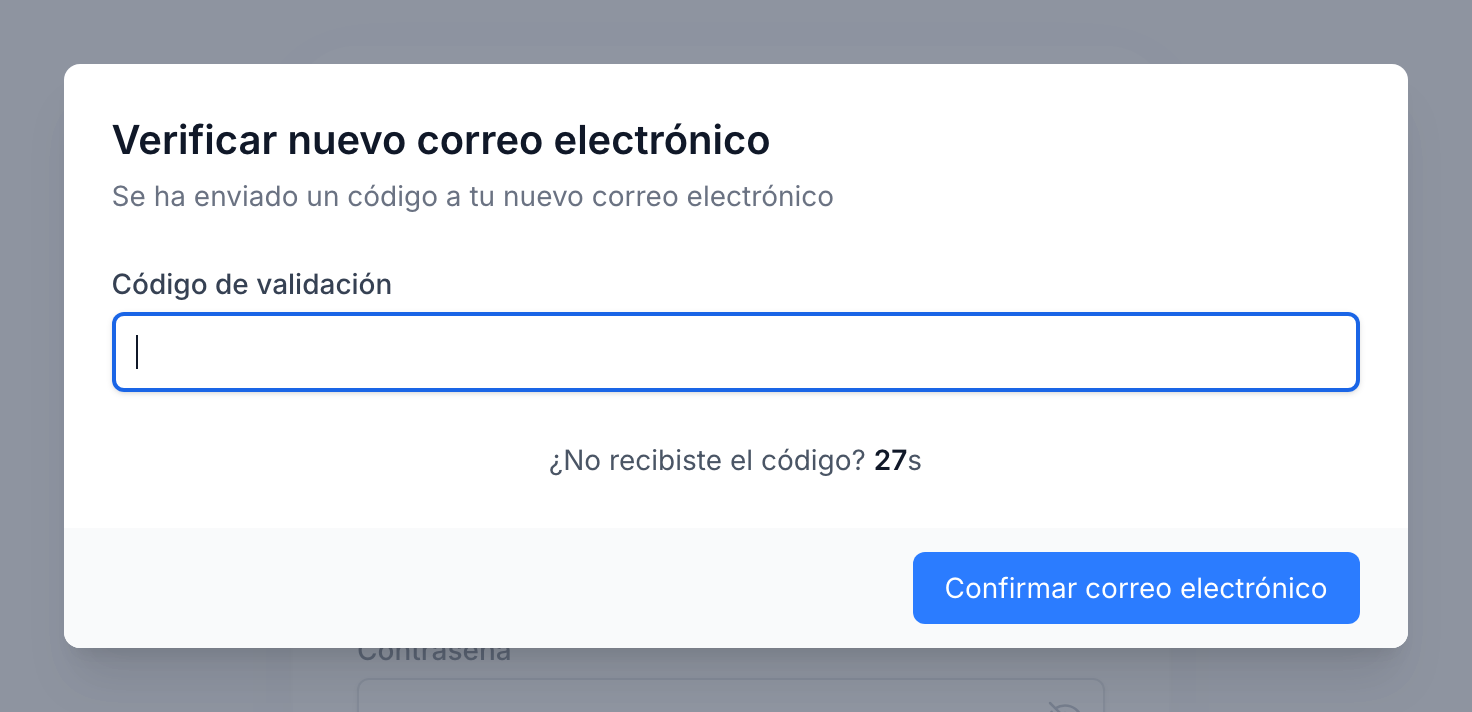
Get your code by text, by call or by email
An email is verified with a code sent to it; a phone gets its code by SMS through Amazon SNS or, with Telnyx, by SMS or by a phone call. The code field, the countdown and the resend link come with it.
How the codes travelStay signed in on your own device
Tick the box when you sign in and the session lasts. On a shared computer, leave it alone and closing the browser signs you out.
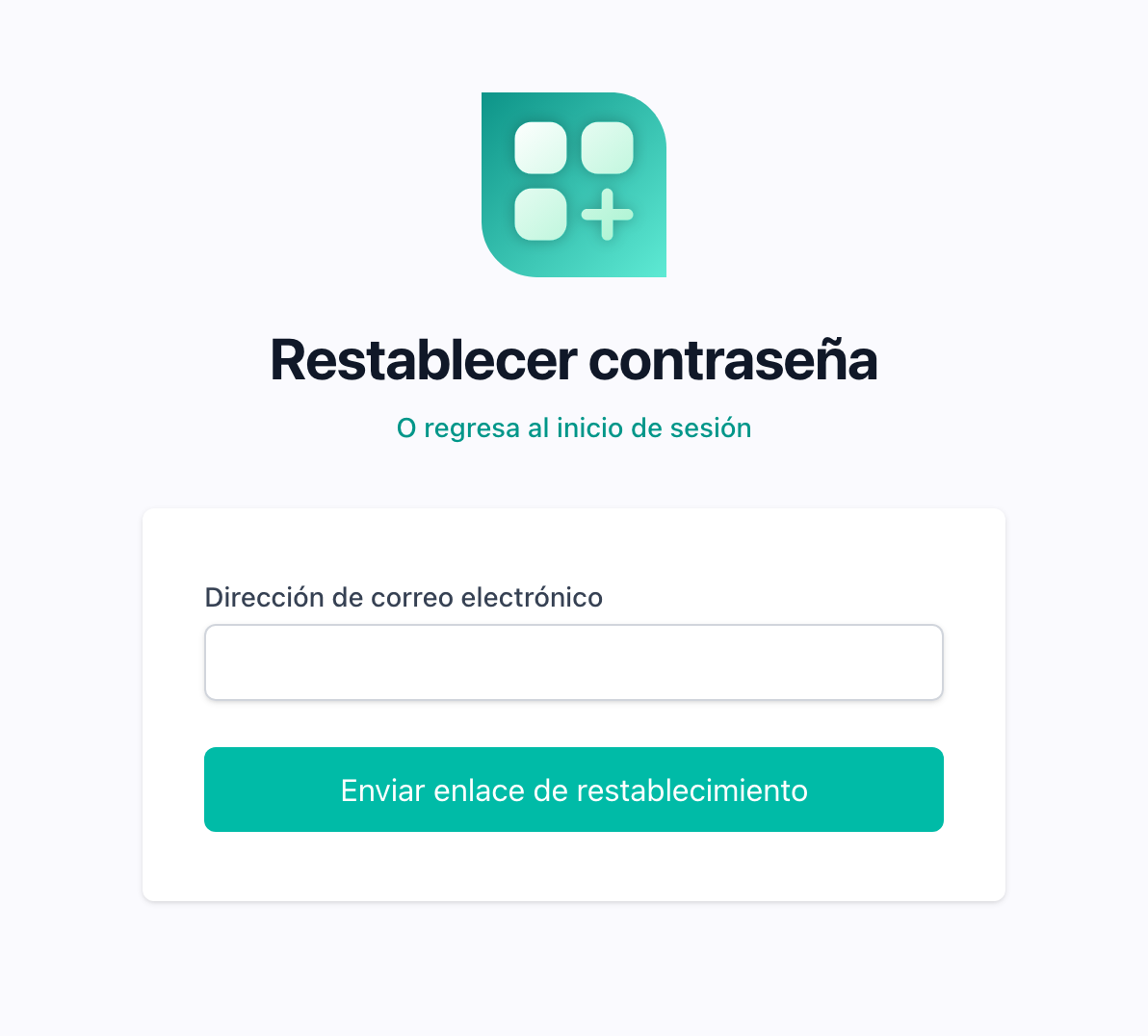
Get back in when you forget your password
Ask for a link from the sign in page and choose a new password. The old one stops working the moment the new one is set.
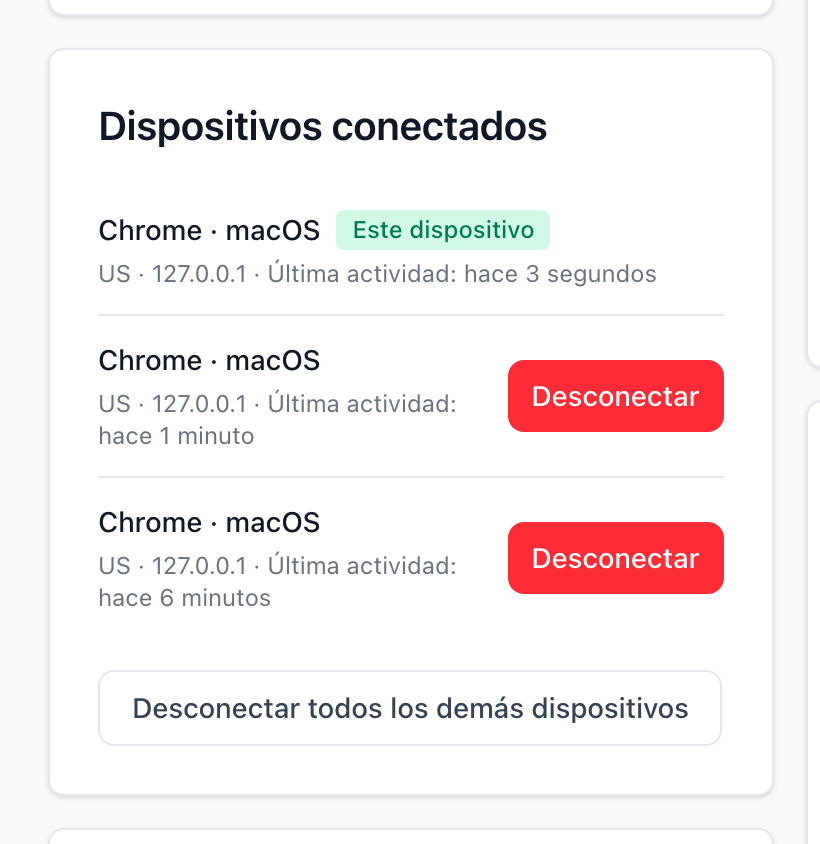
See every device where your account is open
Your profile lists the sessions you have running, with the browser, the system, the country and the last time each one was used. The one you are looking at is marked.
What the account area holdsClose a session you do not recognise
Disconnect one device from that same list, or disconnect all the others at once. The session ends immediately, without changing your password.
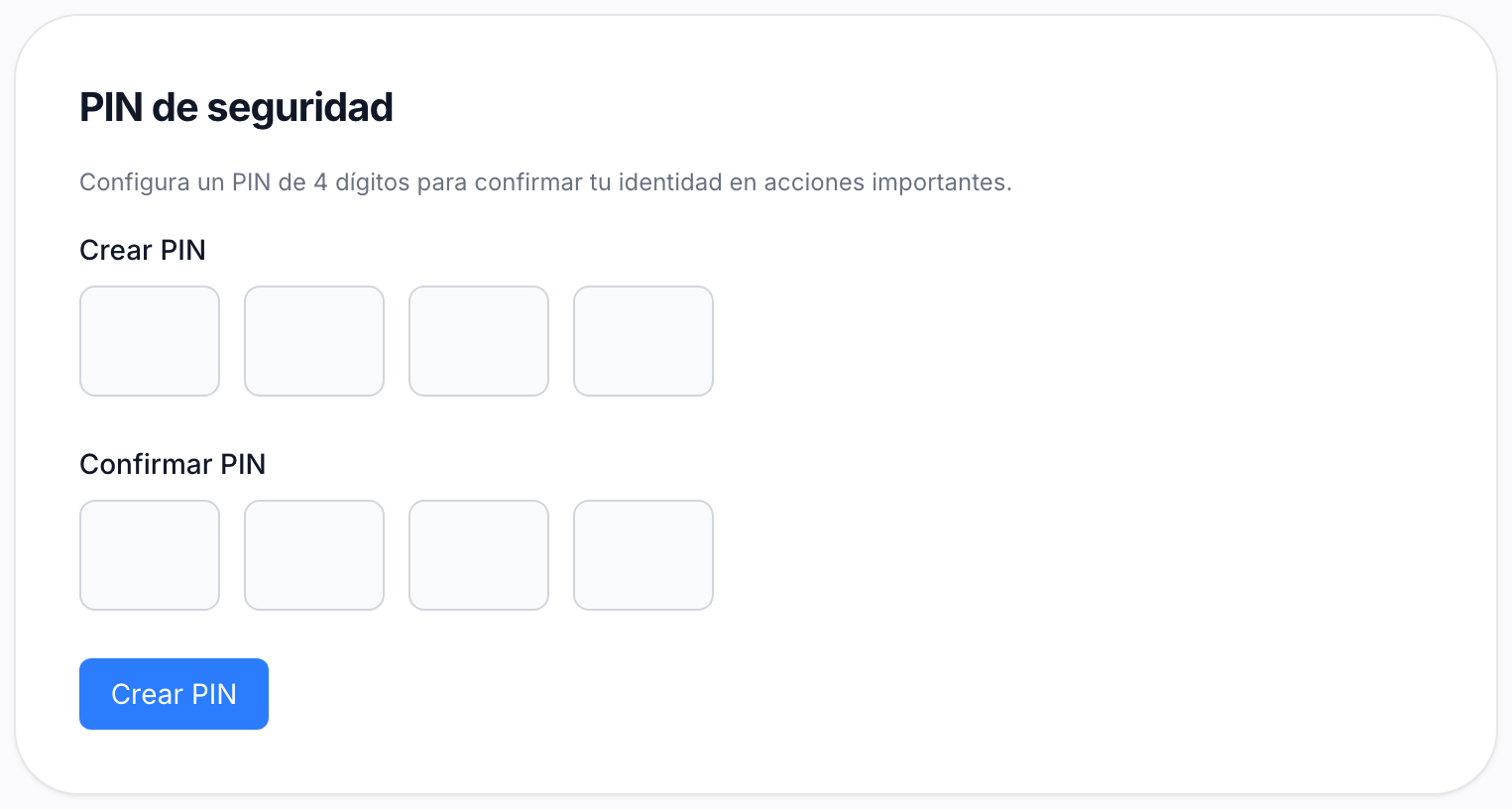
A four-digit PIN for the moments that matter
Turn it on and every account gets a Security PIN card in the profile and a reminder until it is set. The PIN is stored hashed, like the password, and an administrator can reset it when someone forgets it.
How the PIN worksConfirm before anything sensitive happens
Wrap any action of your own in the confirmation dialog and it runs only after the person types their PIN, or their password when they have none. A wrong answer keeps the dialog open and runs nothing.
How to protect an actionLock an account or force a new password
From the admin panel you can block an account, which signs the person out on their next request, or require a new password before they do anything else. Blocking keeps the account and its data, and the same action lifts it.