A back office you do not have to build
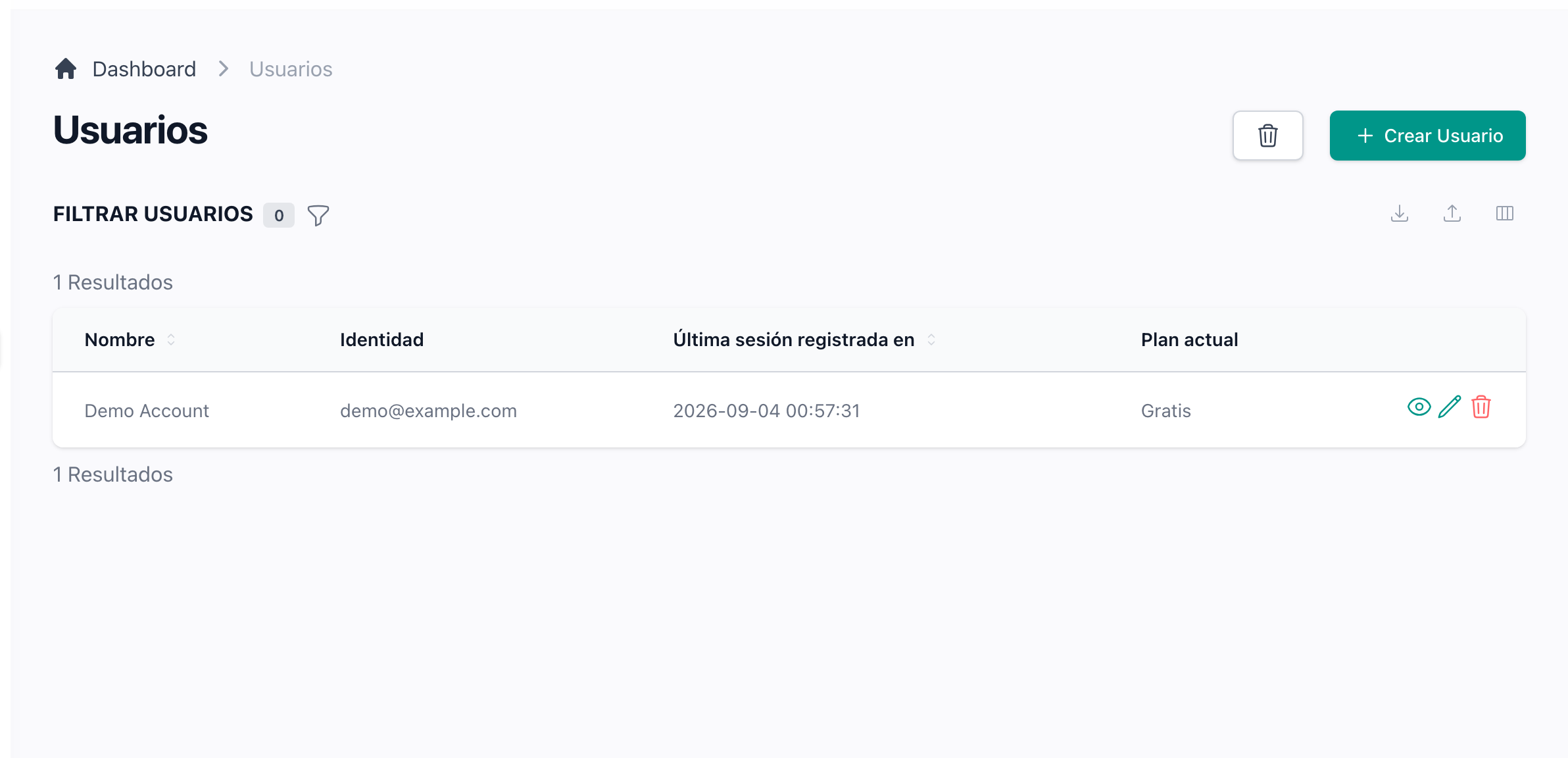
Users, roles, logs, announcements and every table of your product get their screens at /admin, generated from one class each and guarded by permissions.
Describe a screen once and get the whole CRUD
One class names the model, its fields and its filters, and the panel renders the list, the form, the detail page, search, sorting, column preferences, export and import. Adding a screen for your own table is that same class again.
How to add a screen of your own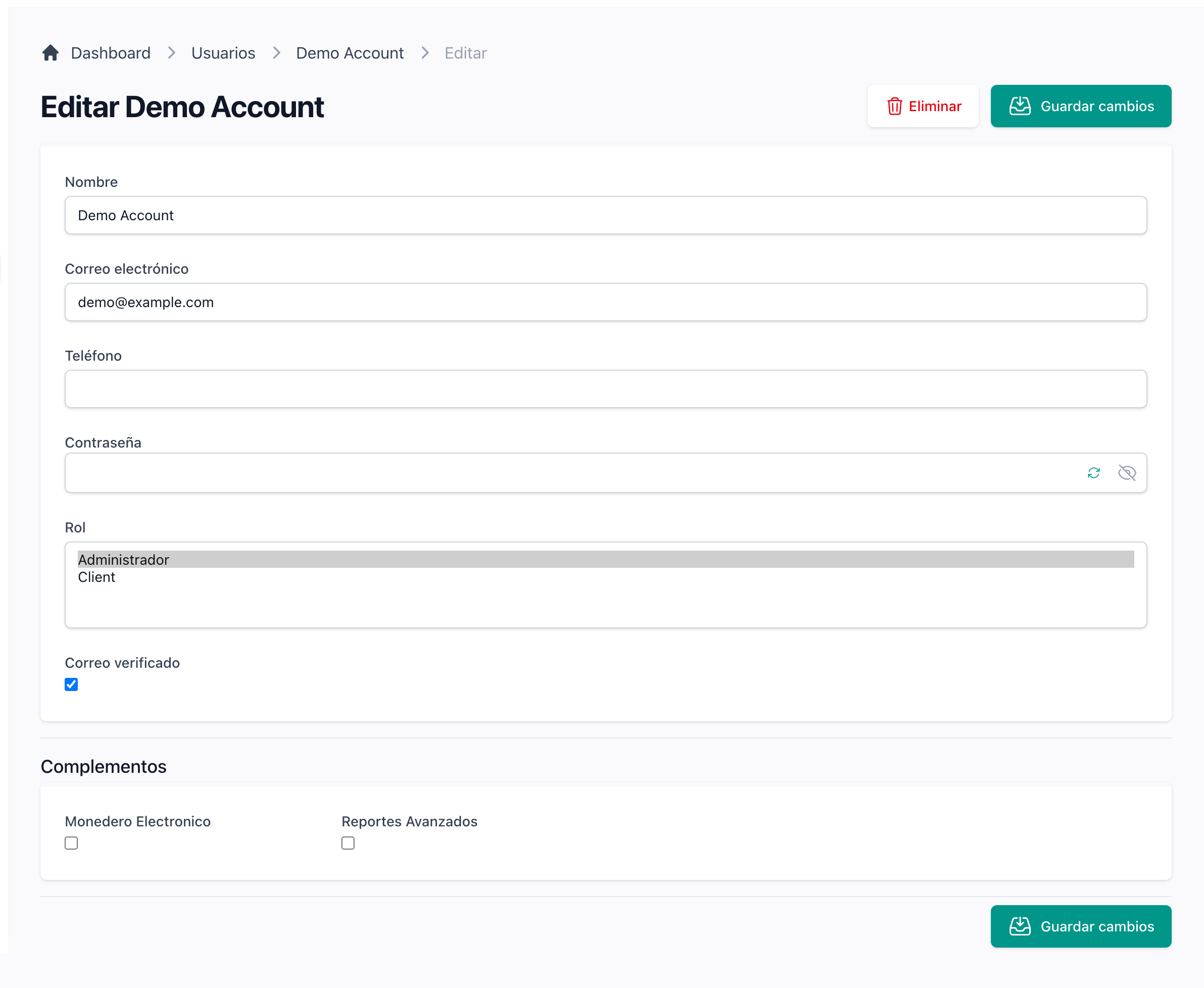
Administer your users from one place
Edit any account, assign its roles, block it, reset its PIN or act as that user to see what they see. Each user page also lists every email and SMS the application sent them.
Grant access by role, with permissions that write themselves
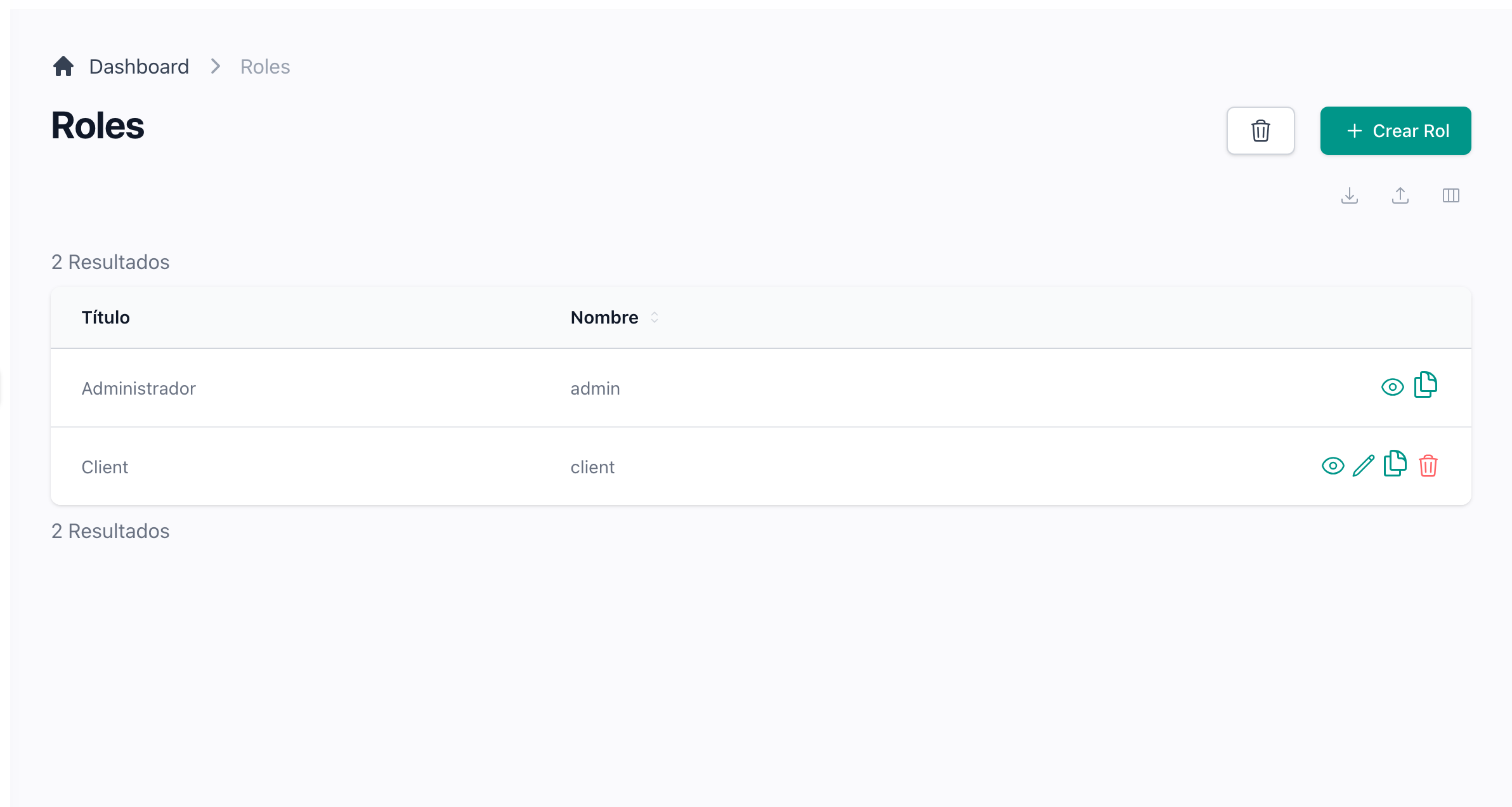
Every screen yields its create, see, update and delete permissions when you seed, and the roles screen shows them as a matrix you tick. A role that cannot read a screen never sees it in the menu.
How roles and permissions work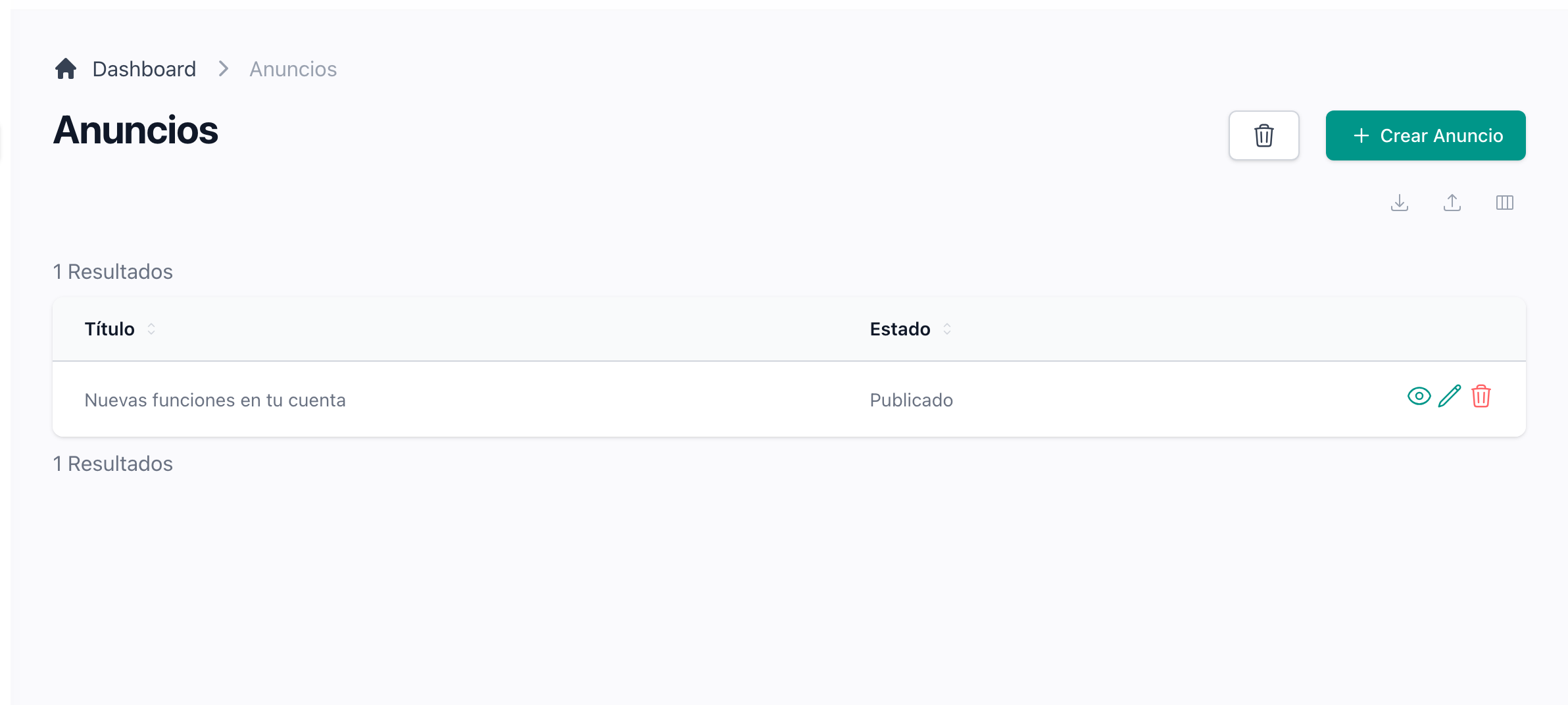
Publish announcements everyone reads
Write a notice in Markdown, publish it, and it appears in a megaphone at the top of every user application. Choose to send it by email as well, and browsers that allowed push get it on their screen.
How announcements work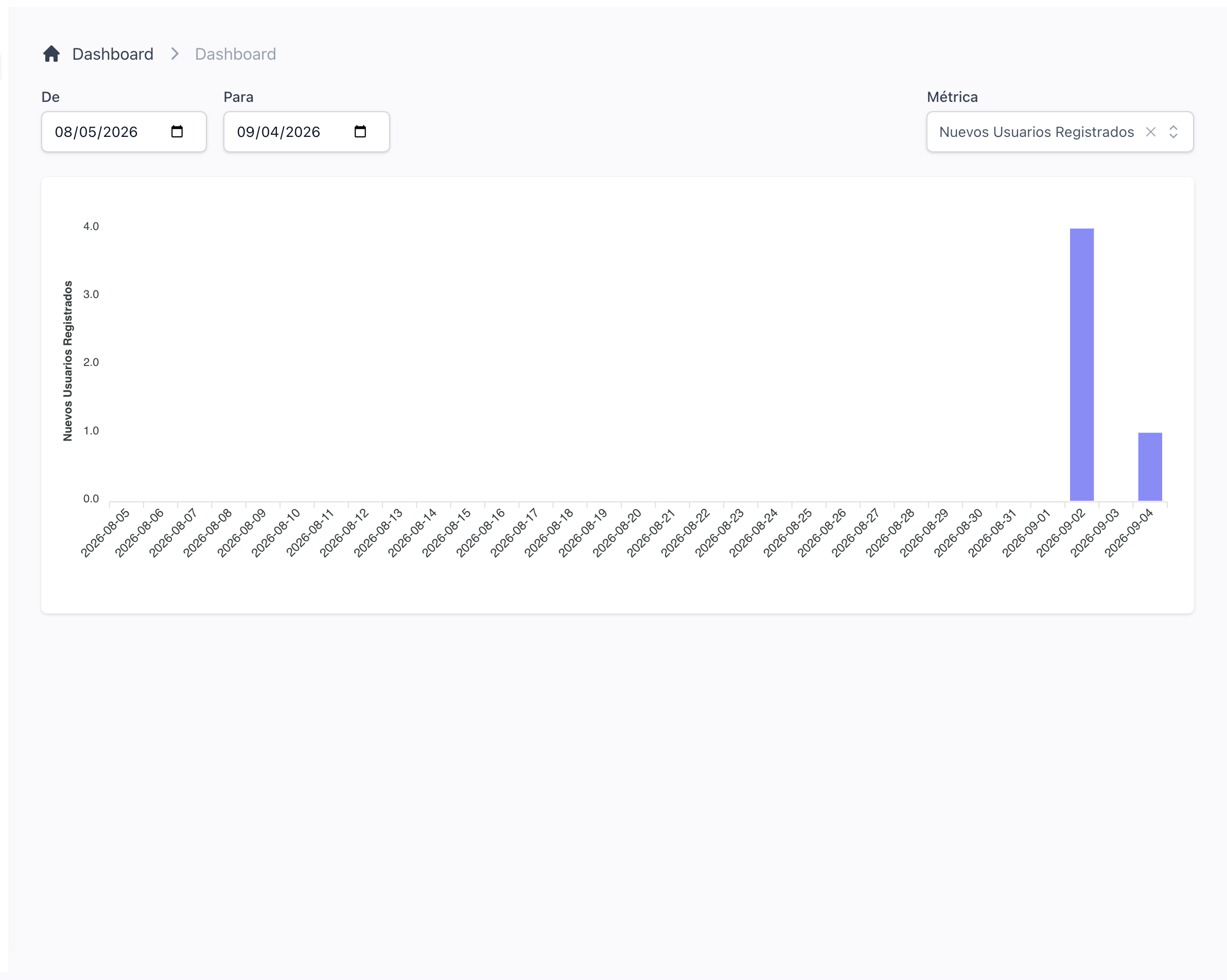
Watch the numbers that matter on the dashboard
Pick a date range and a metric: new users, accumulated users, users signed in each day, users by country, and revenue and subscriptions once billing is on. The chosen chart lives in the URL, so you can bookmark it.
What each metric counts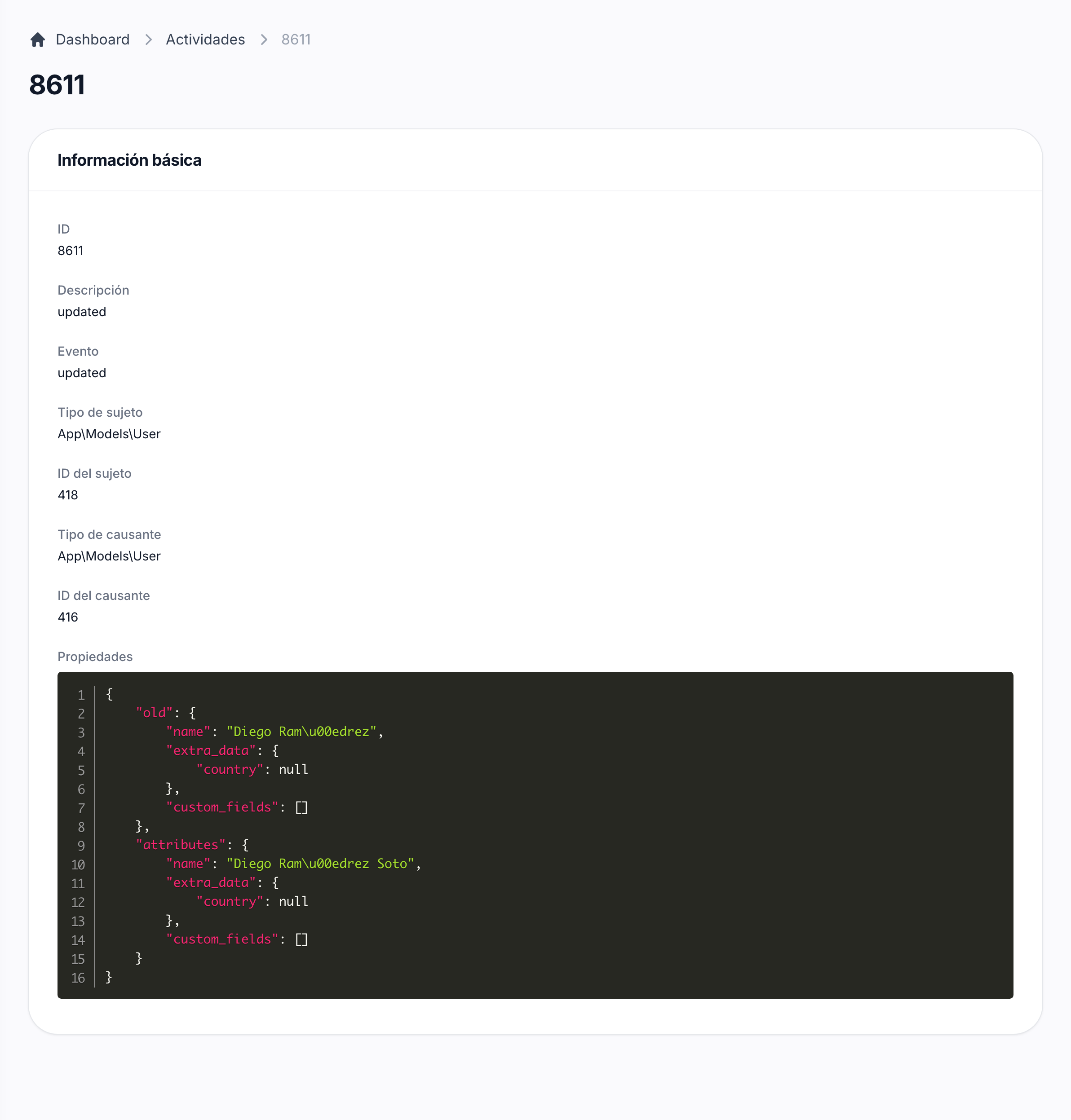
Know who changed what
Every create, update and delete on a model that opts in is recorded with the values before and after and the user who did it. The activity log lists them all, searchable, and is reserved for the owners of the project.
How the logs work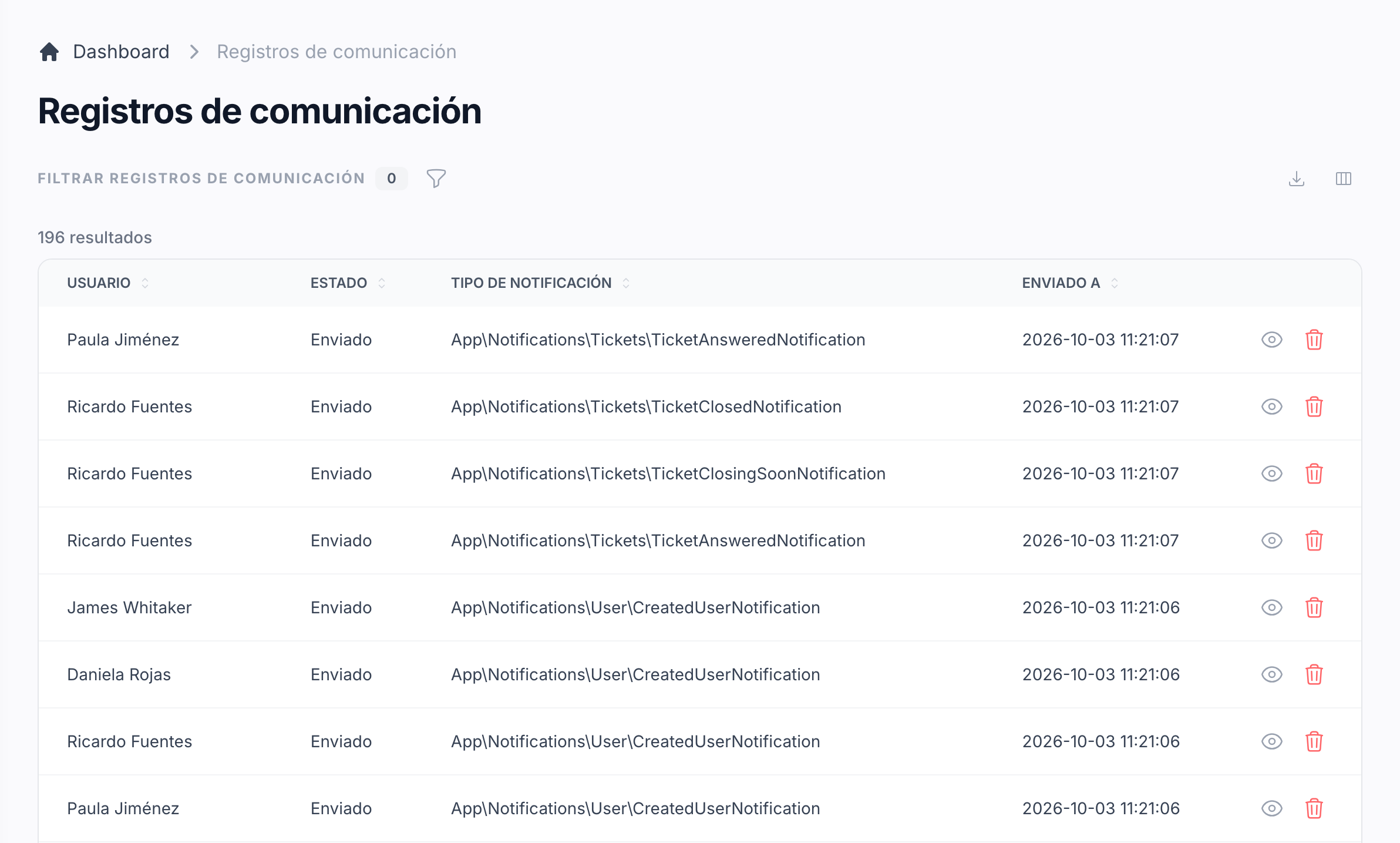
Keep a copy of every email and SMS
Each message a notification sends, delivered or failed, is stored with its recipient, subject and body. When a user says an email never arrived, you open the log instead of guessing.
See every webhook Stripe delivered
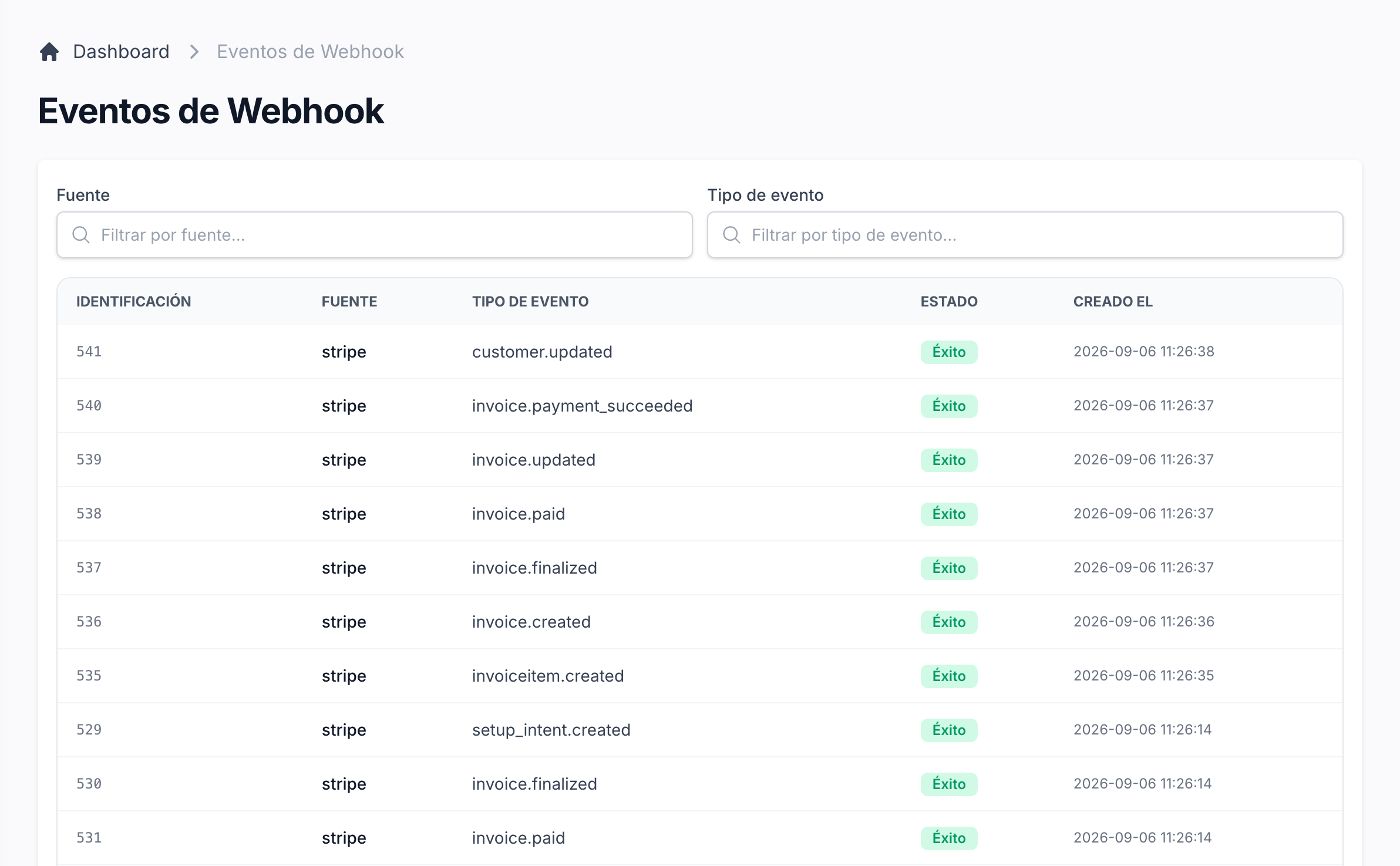
Each event that reaches your endpoint is stored with its payload, the answer your application gave and any error. A payment that did not do what you expected is one row away from its explanation.
Organise records with categories in a tree
Any resource that uses categories gets a Categories button that opens a tree editor for its own type. Add-ons ship with theirs, and your models take the same trait.
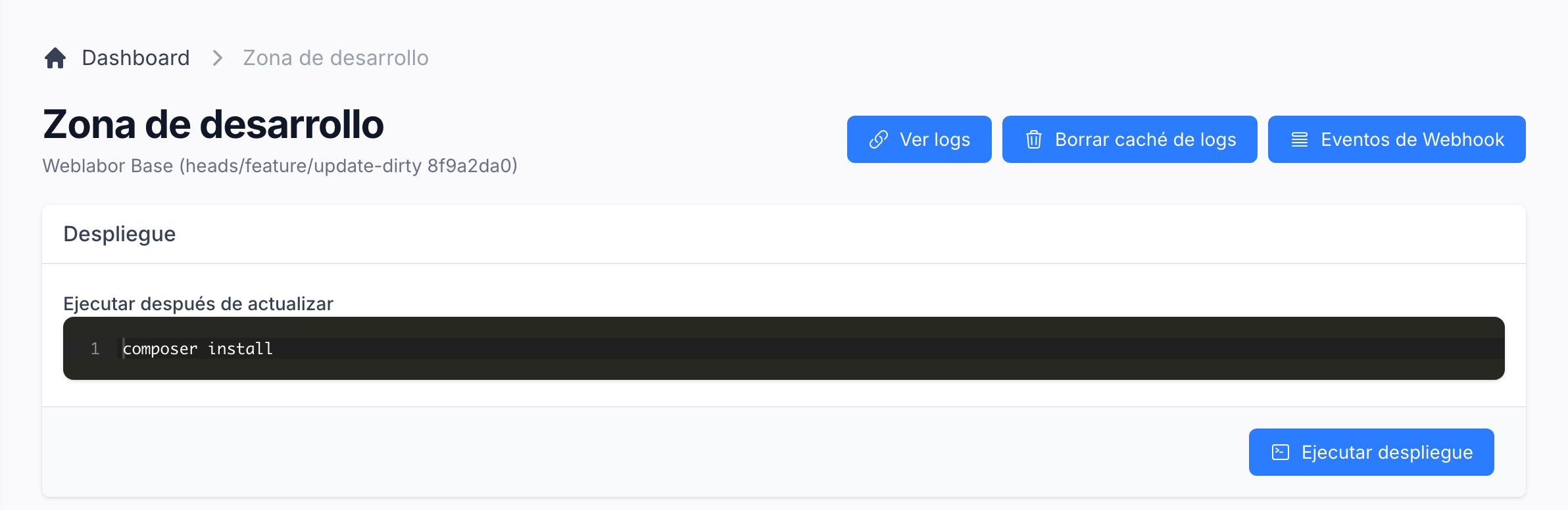
Operate the server from the browser
The DevZone lets a super-administrator edit the .env file, pull and deploy the latest code, read the logs, clear the exception counters and test web push or the mobile app view. It answers only to the emails you commit as owners.
What every DevZone button does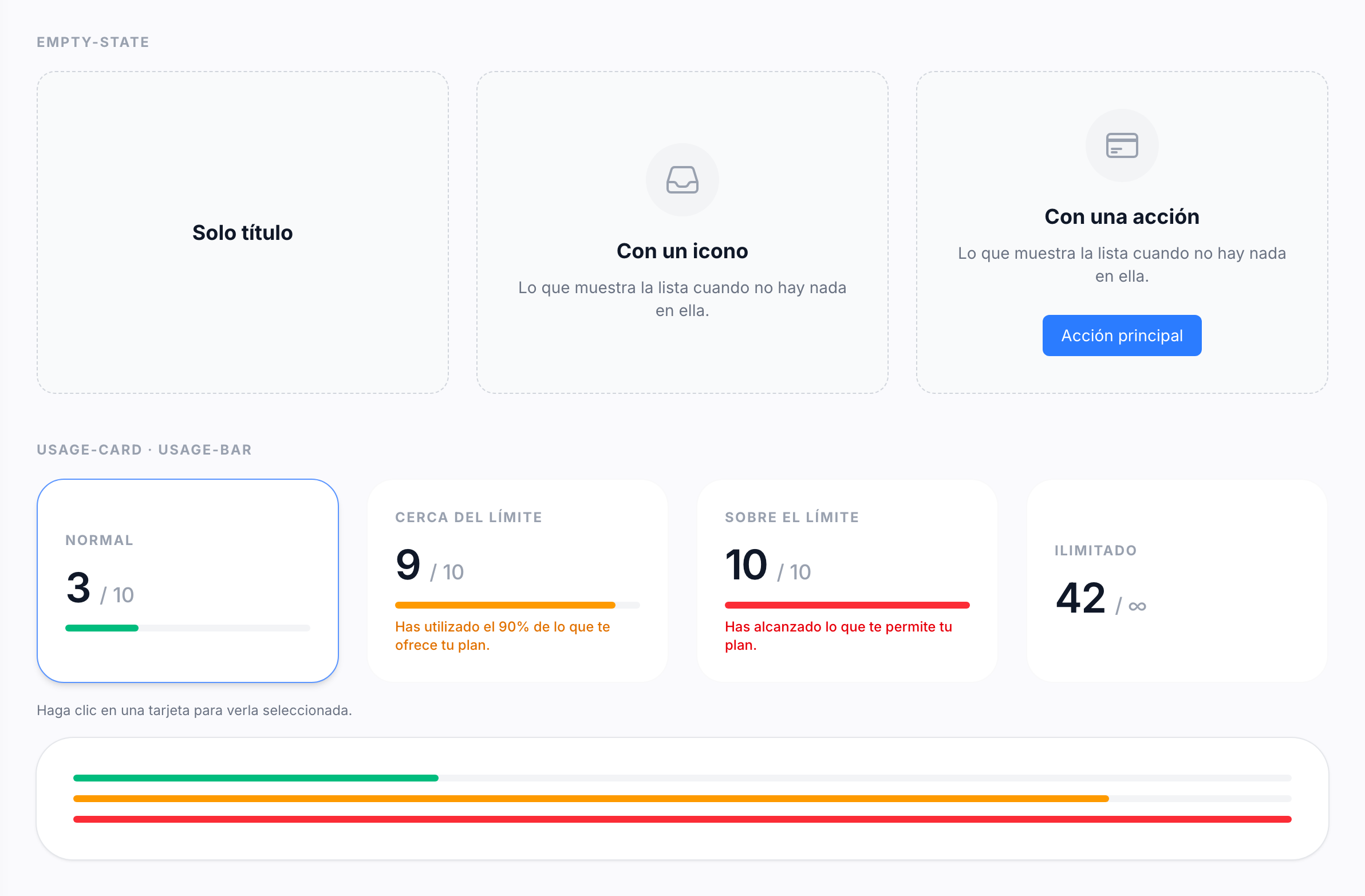
Check every piece of the interface on one screen
The Design screen lists every component the screens are built from, the folder each one is taken from, and each of them in use in every state. A super-administrator checks a change to the look there before it reaches a page.
How the design components workKeep the owners separate from the administrators
Administrators are a role you grant from the panel. Super-administrators are a list of emails in your code that unlocks the DevZone and the full activity log, and their accounts cannot be deleted from the panel.
How super-administrators workKnow where the disk goes
The Space screen adds up every file and every table of the system, grouped by area, so the disk never fills up without you knowing why.
See media and spaceAdd your own fields to users without code
The users list has a Custom fields button: add a text, number, date, list of options or image field, put them in order, and they appear in every user's form and can be shown as columns. Images go to the media library of whoever uploads them and count against their space.
How to add custom fields